
If you’re a brand owner on Amazon, A+ Content is one of the most effective ways to improve how your product page looks and converts. But there are two levels: Standard A+ and Premium A+ Content. They look similar at first glance, yet they offer quite different tools and require different levels of investment.
This guide explains what each one includes, who can use them, what Amazon allows and doesn’t allow, and how to choose the right option for your products.
What Is A+ Content?
A+ Content is the enhanced section on an Amazon product page, shown below the main listing area, where brands can add rich images, text, comparison charts and brand storytelling. It replaces the plain product description with a designed layout that helps shoppers understand the product, compare options and trust the brand.
To use A+ Content, you generally need to be the brand owner and enrolled in Amazon Brand Registry. If you aren’t yet, our Amazon Brand Registry service can help you get set up.
Standard A+ Content
Standard A+ (sometimes called Basic A+) is available to registered brands at no extra charge. You build it in A+ Content Manager in Seller Central by choosing modules from a library of layouts.
Key features of Standard A+:
- Up to five modules per layout
- Image and text combinations, such as banner images, image-with-text blocks and multiple feature panels
- A comparison chart to show your own related products side by side
- Static images (no video inside the A+ section)
Standard A+ is the right starting point for most brands. It’s fast to produce, it covers the essentials, and it can be applied across many ASINs.
Premium A+ Content
Premium A+ gives you a bigger, more interactive canvas. It’s designed for brands that want a more immersive product page, and it is currently offered at no additional charge to eligible accounts.
Features commonly available in Premium A+ include:
- More modules per layout (up to seven)
- Larger, full-width images
- Video modules that play within the A+ section
- Interactive features such as hotspots (details that appear when shoppers hover or tap on parts of an image) and image carousels
- Enhanced comparison charts that can cover more products
- Q&A-style modules to answer common questions on the page
Premium A+ takes more work to produce well. You typically need more photography, video, design and copy, so production costs are higher.
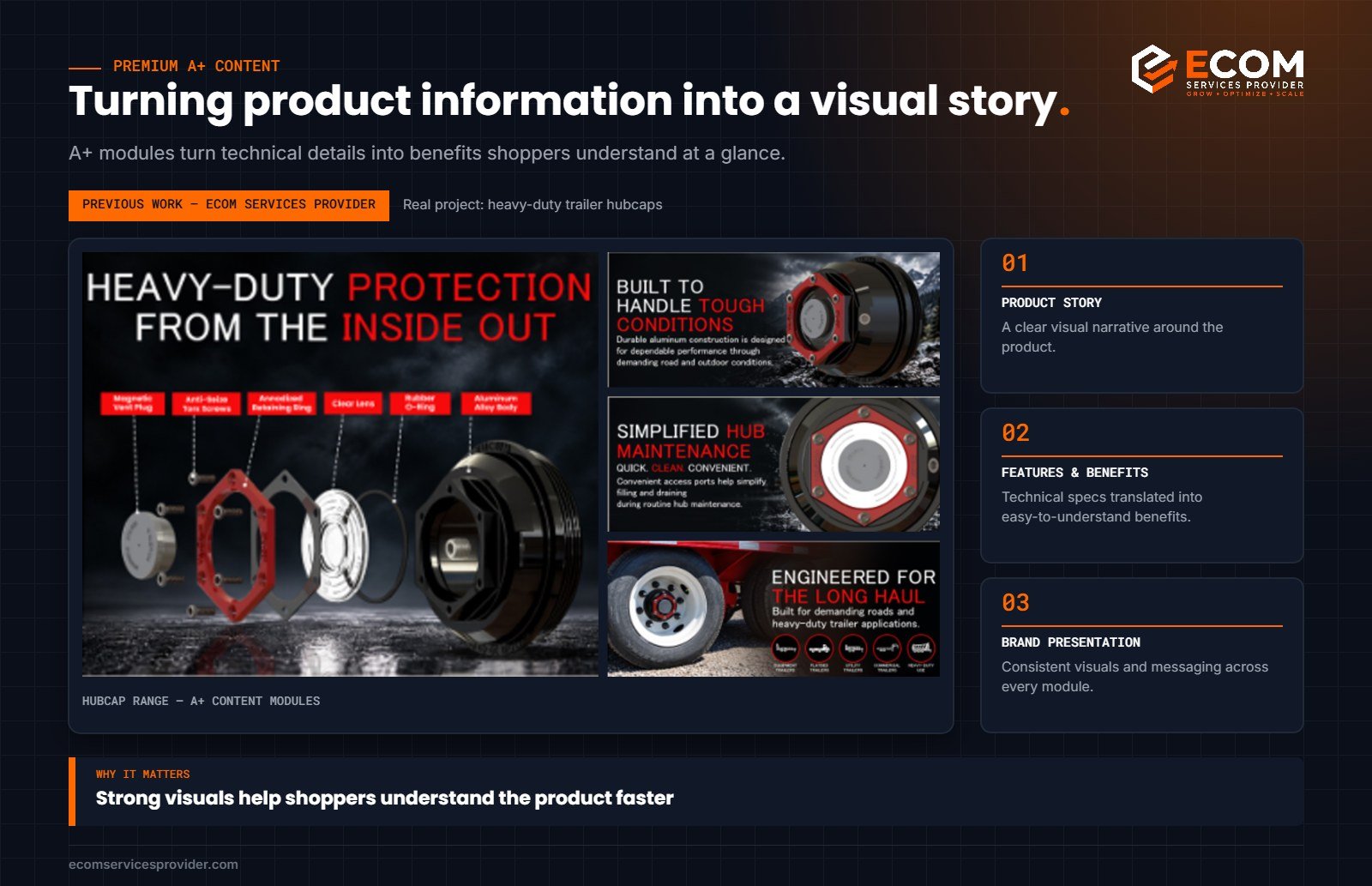
How we do it at ECOM Services Provider: we plan every A+ layout as a story before designing a single module: the product’s strongest benefit first, then how it works, then the details buyers check before they commit. The hubcap modules above follow exactly that order.
Who Is Eligible for Premium A+?
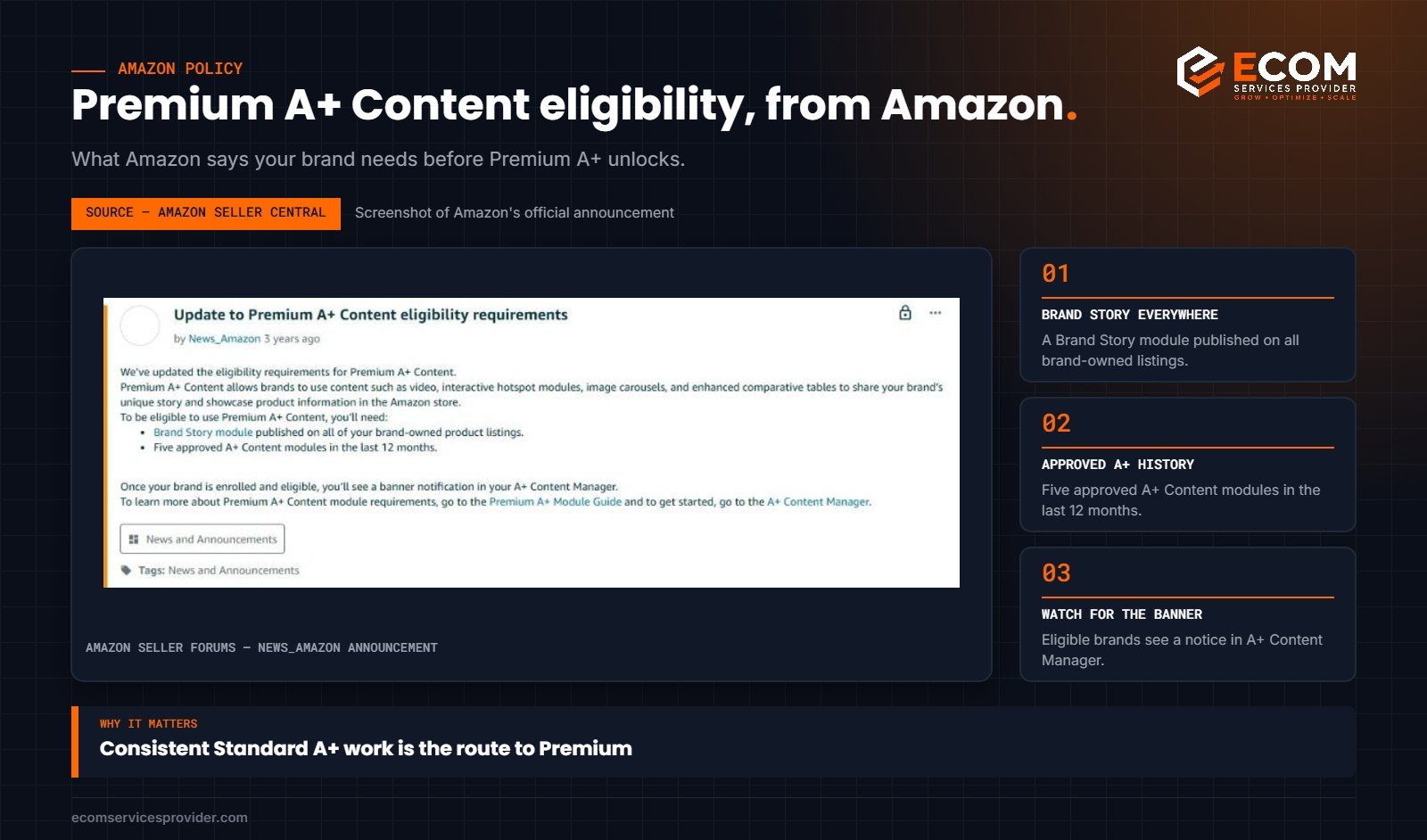
Amazon decides eligibility, and the criteria have changed over time. Amazon’s published criteria require a Brand Story module on all of your brand-owned product listings and five approved A+ Content modules in the last 12 months. Eligibility is shown in A+ Content Manager: if your account qualifies, you’ll see the option to create Premium A+ content there.
If you don’t see it yet, the most practical route is to keep publishing high-quality Standard A+ content and a Brand Story across your listings, keep your account in good standing, and check back periodically.
Brand Story: The Often-Missed Extra
Brand Story is a separate carousel that appears above the A+ section. It introduces your brand, shows your other products and can link to your Brand Store. It’s quick to create, appears across all your ASINs, and helps shoppers discover more of your range. If you have Brand Registry, you should be using it alongside A+.
What Amazon Doesn’t Allow in A+ Content
Both Standard and Premium A+ go through Amazon’s review process, and content can be rejected for breaking the guidelines. Common reasons include:
- Pricing, discount or promotional language (for example “sale” or “free shipping”)
- Time-sensitive claims or shipping details
- Guarantees, warranties or unsupported claims
- Customer reviews, quotes or star ratings
- Contact details, external links or website addresses
- Comparisons with competitor products (comparison charts should show your own products)
- Low-resolution images or text that’s too small to read on mobile
Keeping your content factual, clear and focused on the product helps it get approved first time.
How to Create A+ Content in Seller Central
The process is similar for Standard and Premium A+:
- Plan the story first. Before opening any tools, decide what each module needs to say. A common flow is: brand or hero banner, key benefits, how it works or how to use it, materials and quality details, and a comparison chart.
- Prepare your assets. Collect images at the dimensions each module requires, along with short, scannable copy and keyword-relevant image alt text.
- Open A+ Content Manager. In Seller Central, go to Advertising, then A+ Content Manager, and choose to start creating content. Eligible accounts will see the option to choose Premium A+.
- Add and arrange modules. Select modules, upload images, add text and preview how the layout looks on desktop and mobile.
- Apply ASINs. Choose which products the content should appear on. One A+ layout can often be applied to several related products.
- Submit for review. Amazon checks the content against its guidelines. Once approved, it appears on the detail page, usually within a few days.
Keep a copy of your source files and copy in one place. You’ll want them when you update the content, translate it for another marketplace or reuse modules on new products.
Standard vs Premium: How to Decide
Choose Standard A+ if:
- You’re new to Brand Registry or haven’t been offered Premium yet
- You need to cover a large catalogue efficiently
- Your products are simple and easy to explain with static images
- Your design budget is limited
Choose Premium A+ if:
- Your account is eligible
- Your product benefits from demonstration (for example, a tool, gadget or product with a setup process)
- You compete in a crowded category where a richer page can help you stand out
- You have, or can produce, quality video and lifestyle content
Many brands use both: Premium A+ on hero products that drive most revenue, and Standard A+ across the rest of the range.
Tips for Effective A+ Content (Either Version)
- Design for mobile first. Most Amazon shoppers browse on phones, so text must be readable and images must work at small sizes.
- Answer objections. Use the space to address questions you see in reviews and customer messages.
- Show, don’t just tell. Lifestyle images, size references and close-ups do more than paragraphs of text.
- Use the comparison chart. It’s one of the best tools for cross-selling and moving shoppers to the right variant.
- Keep it consistent. Use your brand colours, fonts and tone across all modules and ASINs.
You can read Amazon’s overview of A+ on Sell on Amazon.
Frequently Asked Questions
Is Premium A+ Content free?
Amazon currently offers Premium A+ at no additional charge for eligible accounts. You will still have production costs for design, photography and video.
How long does A+ Content take to be approved?
Amazon’s review usually takes a few days, though it can be longer. If content is rejected, Amazon shows the reason so you can fix and resubmit.
Does A+ Content improve sales?
A+ Content is designed to help shoppers understand your product and brand, which can support conversion. Results vary by product and category, so track your conversion rate before and after publishing.
Can I use A+ Content without Brand Registry?
Generally, no. A+ Content is a brand-owner feature, so Brand Registry enrolment is usually required.
Let Us Create Your A+ Content
ECOM Services Provider designs Standard and Premium A+ Content for brands across Amazon marketplaces worldwide, backed by 8+ years of experience and 768+ completed projects. See our Amazon A+ Content service, explore Amazon Storefront design, or book a free consultation.