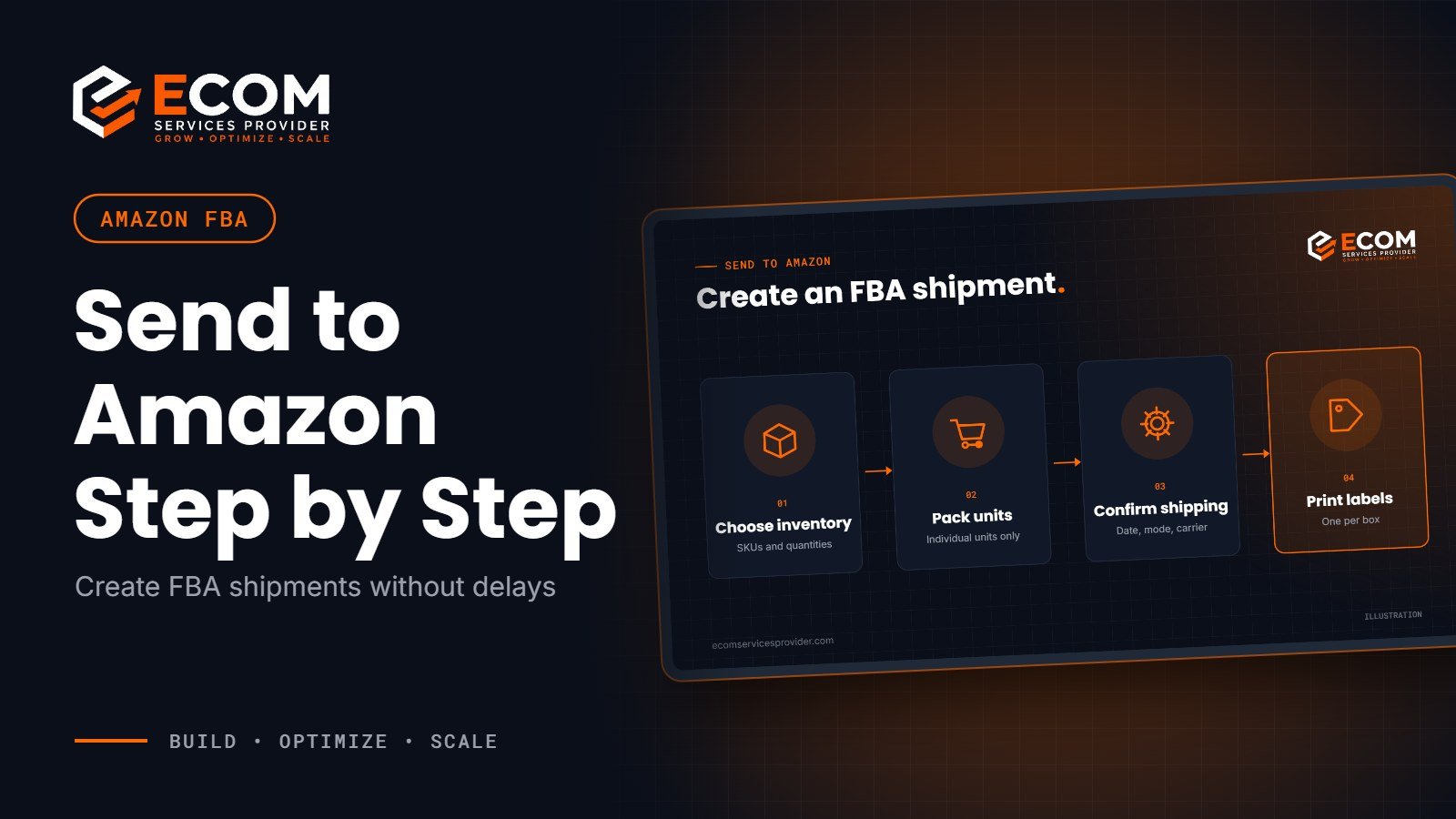
Getting stock into Amazon’s fulfilment network is one of the most routine jobs in an FBA business, and one of the easiest to get wrong. A missing box label or inaccurate box contents can delay check-in by days, while your listing runs out of stock. Send to Amazon is the workflow Amazon uses for creating FBA shipments, and once you understand its steps, sending inventory becomes quick and repeatable.
This guide walks through how to create an FBA shipment step by step, what to prepare beforehand, and the mistakes that most often slow shipments down.
What Is Send to Amazon?
It is the shipment creation workflow in Seller Central. It replaced the older Send/Replenish workflow in 2022 and is now the standard way to send inventory to Amazon’s fulfilment centres. You start it from the Shipments page or directly from your FBA inventory page.
Amazon designed it to need fewer steps than the old process. According to Amazon’s own guide to Send to Amazon, you can save packing information as reusable templates, and you enter box contents before Amazon confirms where your boxes will go, which helps your stock get into the network and on sale faster.
Before You Start: What You Need
Have this information ready before you open the workflow:
- The SKUs and quantities you want to send
- Your ship-from address
- Box dimensions and weights for each box
- Units per box, if you ship in single-SKU case packs
- Prep and labelling requirements for each product
- Your preferred ship date and whether you will ship small parcels or pallets
Check that every product is already set to “Fulfilled by Amazon” and that its prep requirements are correct. Most problems at check-in begin with incomplete product setup, not with the shipment itself.
Decide too whether each product will use its manufacturer barcode or an Amazon barcode (FNSKU label). If a product needs Amazon barcodes, every unit must be labelled before it is packed, and the label must cover any other scannable barcode on the packaging.
Case-Packed vs Individual Units
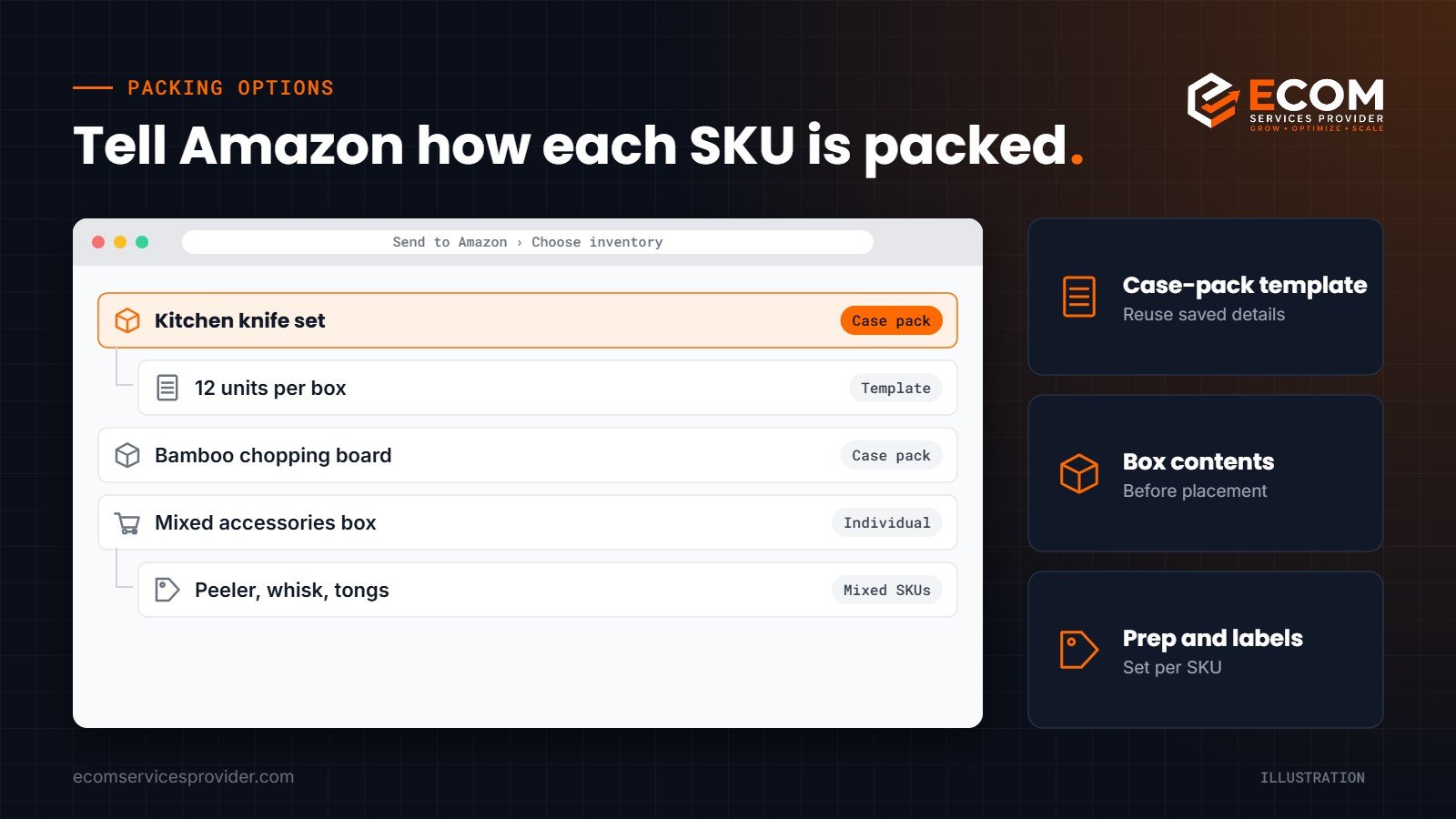
The workflow asks how each SKU is packed, and the answer changes the steps you see.
Case-packed products
A case pack is a box that holds only one SKU, in the same quantity every time, usually as it arrives from your manufacturer. You can save a case-pack template with the units per box, box dimensions, weight and prep details, so repeat shipments take minutes rather than an hour.
Individual units
Individual units are used when a box contains mixed SKUs or varying quantities. You confirm which items go in which box during the packing step, so the box content information is accurate before you print labels.
If your supplier ships in consistent cartons, case packs are usually the simpler choice. Mixed boxes suit smaller brands sending a few units of many products.
How to Create an FBA Shipment in Send to Amazon
The exact screens vary slightly by marketplace, but the main steps are the same.
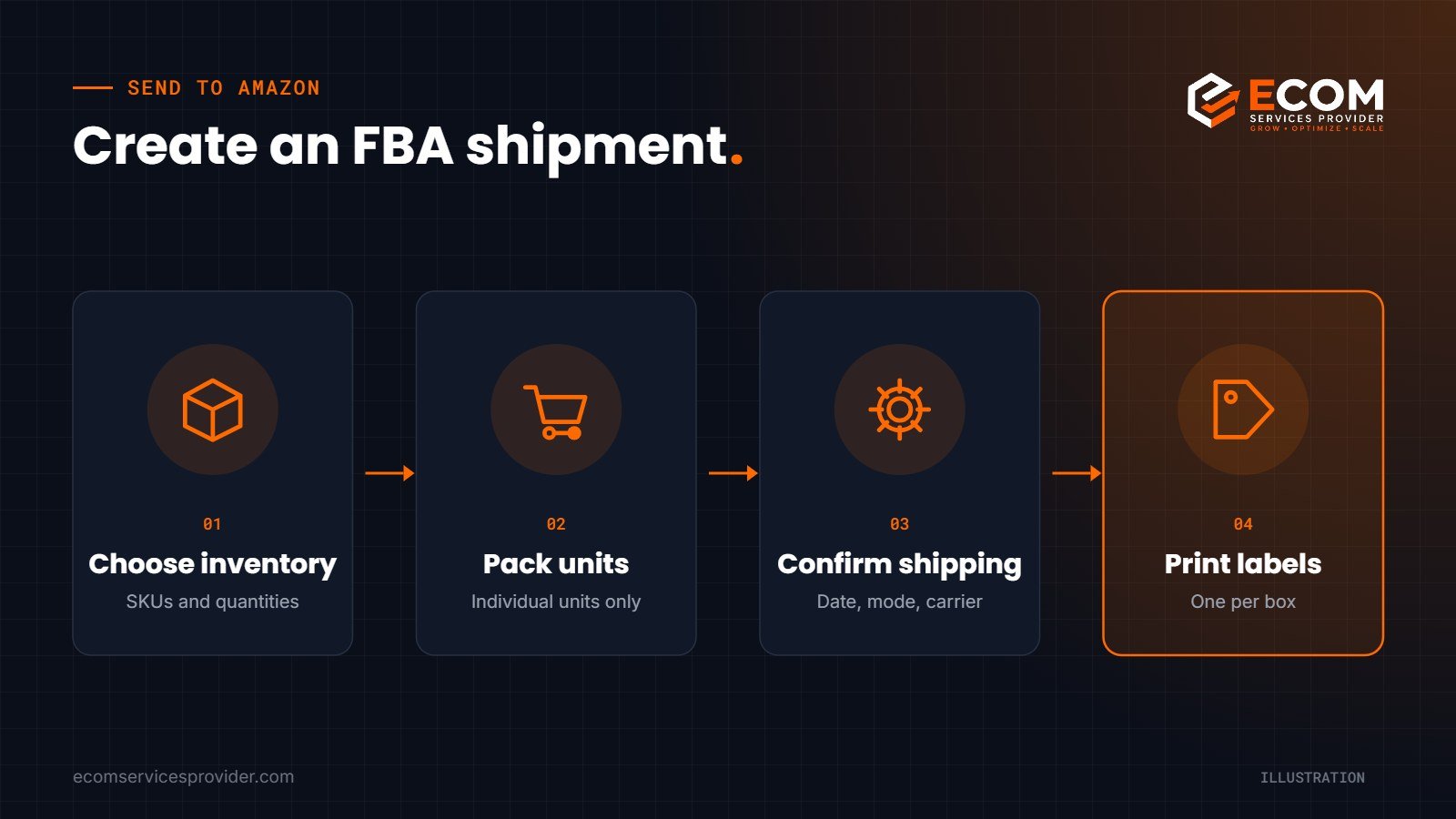
1. Choose inventory to send
Confirm your ship-from address and marketplace, then select the SKUs and quantities. Enter packing details for each SKU, either by choosing a case-pack template or selecting individual units.
2. Pack individual units
If you chose individual units, tell Amazon how many boxes you are using and which items are in each one, along with each box’s weight and dimensions. Case-packed SKUs skip this step.
3. Confirm shipping
Choose your ship date, select small parcel delivery or less-than-truckload (pallet) shipping, and pick a carrier. Amazon shows estimated costs for the available options. Using an Amazon Partnered Carrier lets you buy labels inside the workflow and have tracking added automatically.
4. Print box labels
Print the FBA box labels and attach one to each box where it will not be covered by tape or folded over a seam. For small parcel shipments, this is the final step after you add tracking details.
Keep a copy of the box contents and label list for every shipment. If Amazon reports a quantity difference at check-in, these records make the investigation much faster.
5. Confirm pallet details (pallet shipments only)
For pallet shipments, confirm the carrier and pallet information, then print and attach pallet labels.
Placement, Fees and FBA Capacity Limits
Amazon may split your shipment across more than one fulfilment centre so your stock sits closer to customers. In the US, choosing fewer shipment splits than Amazon’s optimised placement can add an inbound placement service fee. Fees and options vary by marketplace and change over time, so check the current rate card for your store before you confirm.
Your shipment also counts against your FBA capacity limits. Amazon’s capacity announcement explains that limits are set as a monthly volume, and that shipments you have created but Amazon has not yet received count towards that limit. Avoid creating shipments you are not ready to send, as they hold capacity you could use for other products.
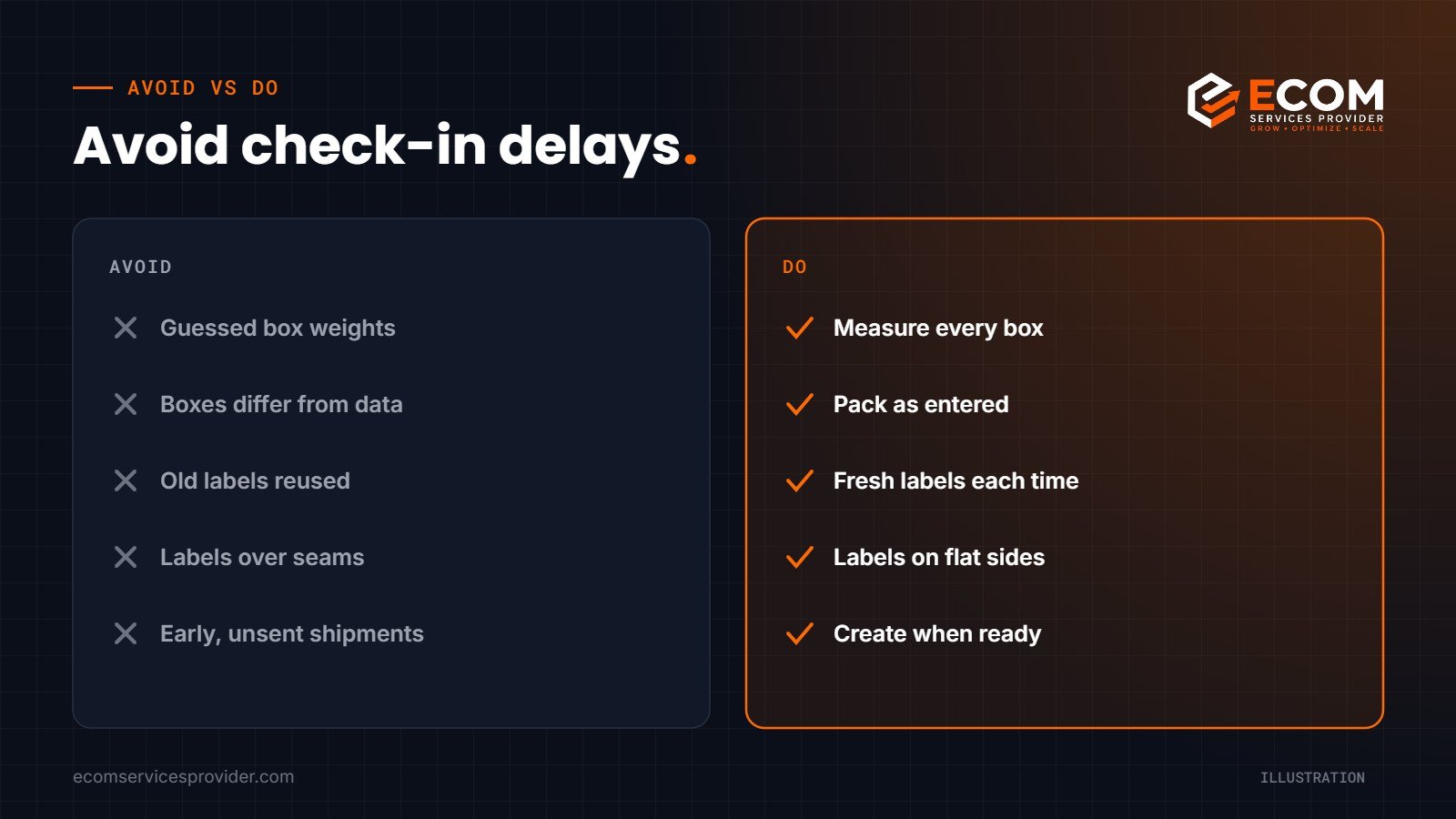
Common FBA Shipment Mistakes
These errors cause most delays and check-in problems:
- Entering estimated box weights or dimensions instead of measuring
- Packing boxes differently from the box contents you entered
- Reusing old labels from a previous shipment
- Putting labels over seams or covering them with tape
- Ignoring product prep, such as poly bagging or bubble wrap
- Creating shipments far in advance, tying up capacity
Small slips here can lead to receiving discrepancies, which take time to investigate and can leave stock unavailable to sell.
How We Do It at ECOM Services Provider
When we manage FBA shipments for a brand, we start by checking product setup: fulfilment channel, prep categories and barcode type for every SKU. We then build case-pack templates for products that arrive in consistent cartons, so each replenishment uses the same verified details.
Before each shipment, we review stock levels and sales speed to decide quantities, check available capacity, and confirm box contents, weights and dimensions with the brand or its supplier. After the shipment is created, we track it through to check-in and follow up on any receiving differences. This sits within our wider Amazon FBA service, alongside inventory planning.
Frequently Asked Questions
How do I create a shipment in Send to Amazon?
Choose the inventory to send, pack individual units if needed, confirm shipping, then print and attach box labels. Pallet shipments add a final pallet label step.
What is a case pack on Amazon?
A case pack is a box containing a single SKU in a set quantity. You can save case-pack templates so you do not re-enter the details each time.
Can I still use Send/Replenish?
No. Amazon retired the older Send/Replenish workflow in 2022, so the newer workflow is now the standard for creating FBA shipments.
Do open shipments count towards my FBA capacity limit?
Yes. Shipments you have created but Amazon has not yet received count towards your capacity limit, so only create shipments you are ready to send.
Ready to Simplify Your FBA Shipments?
Send to Amazon makes shipment creation faster, but only when your product data, packing details and capacity planning are accurate. ECOM Services Provider has 8+ years of experience and has completed 768+ projects, and our Amazon account management team handles inventory and shipments so you can focus on growing your brand. Book a free consultation to talk through your FBA process.