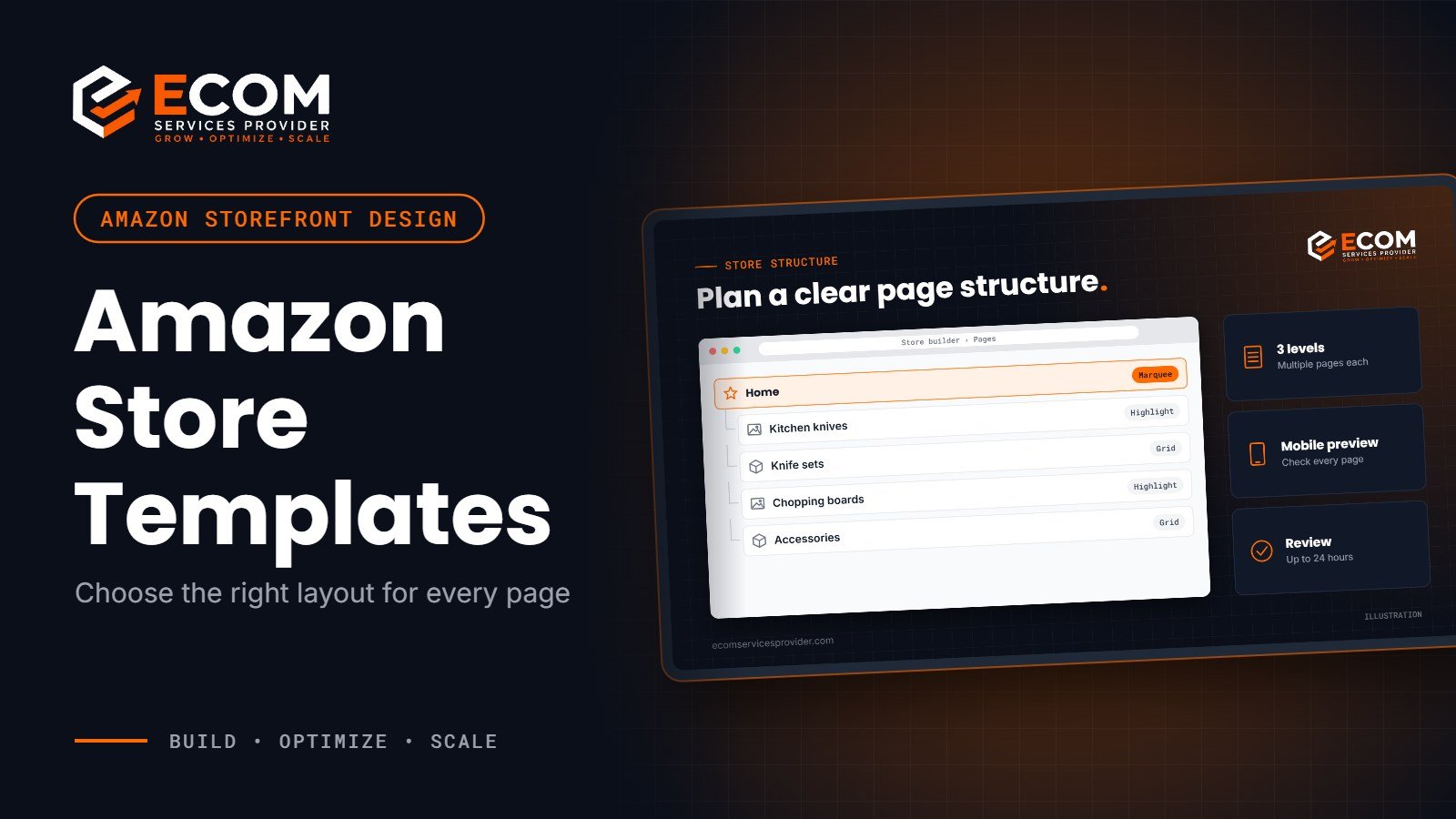
When you create a Brand Store, the first decision Amazon asks you to make is which template to use. It looks like a small choice, but it shapes how shoppers move through your brand, which products they see first and how easily they can buy. Understanding Amazon store templates helps you build a Store that is clear, easy to browse and simple to update.
This guide explains the templates available in the Store builder, when to use each one, how tiles and pages work, and the mistakes to avoid when building your Store.
What Is an Amazon Brand Store?
An Amazon Brand Store is a free, multi-page shop for your brand within Amazon, with its own URL. According to Amazon Ads, sellers enrolled in Amazon Brand Registry can create one, as can vendors and agencies working on their behalf, and you do not need to advertise to have a Store.
Stores are built with a drag-and-drop builder in your advertising console. Every page starts from a template, then you customise it with sections and tiles before submitting it for review.
The Amazon Store Templates Explained
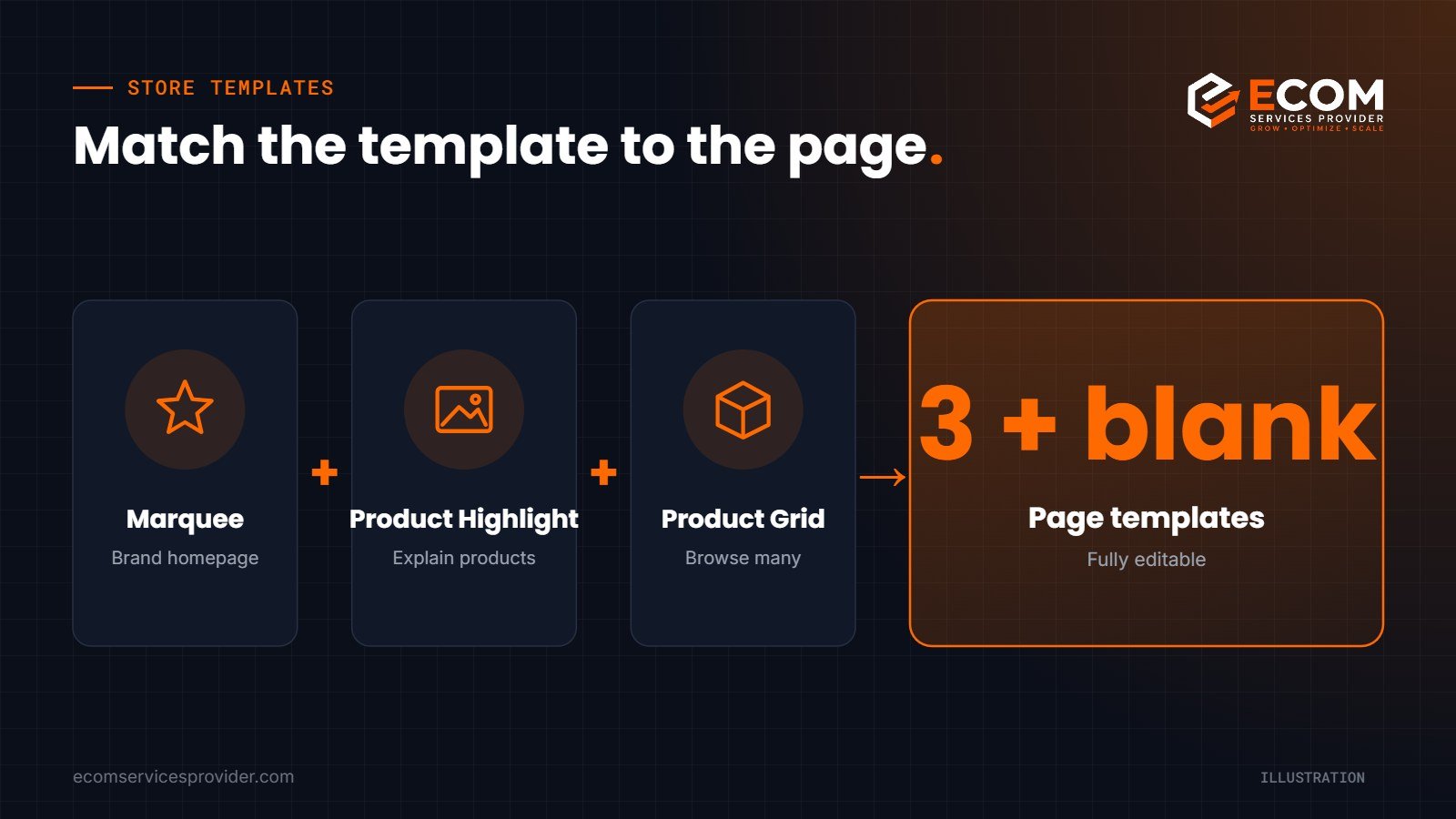
The Store builder offers three ready-made page templates plus a blank option. Each template is a starting layout, not a fixed design, so you can add, remove and rearrange sections afterwards.
Marquee
The Marquee template is designed as a gateway page for your brand or a sub-brand. It works well as a homepage, introducing the brand and guiding shoppers to categories, hero products and key messages.
Product Highlight
The Product Highlight template showcases products alongside supporting content, such as lifestyle images, videos and short benefit text. It suits category pages where shoppers need help choosing, or pages built around a single hero product or collection.
Product Grid
The Product Grid template displays many products at once in a simple, scannable layout. It is ideal for larger categories, best sellers or pages where shoppers already know what they want and simply need to browse.
Blank template
A blank page lets you build every section from scratch. It gives you full flexibility but takes longer to plan, so most brands use it only when none of the templates fits.
How to Choose the Right Template
A simple rule works for most brands: match the template to what the shopper needs on that page.
- Homepage: Marquee, to introduce the brand and route shoppers
- Category or collection pages: Product Highlight, when products need explaining
- Large ranges or best sellers: Product Grid, when browsing speed matters
- Campaign or seasonal pages: Product Highlight, or a blank page for a custom layout
You can use different templates on different pages. A typical Store uses Marquee for the homepage and a mix of Product Highlight and Product Grid for subpages.
Whichever Amazon store templates you choose, the images you place in them do most of the work. Plan custom banners and lifestyle images sized for each tile, rather than reusing listing images, so every page looks deliberate on desktop and mobile. Our product graphics team designs Store visuals this way.
How to Plan Your Store Pages
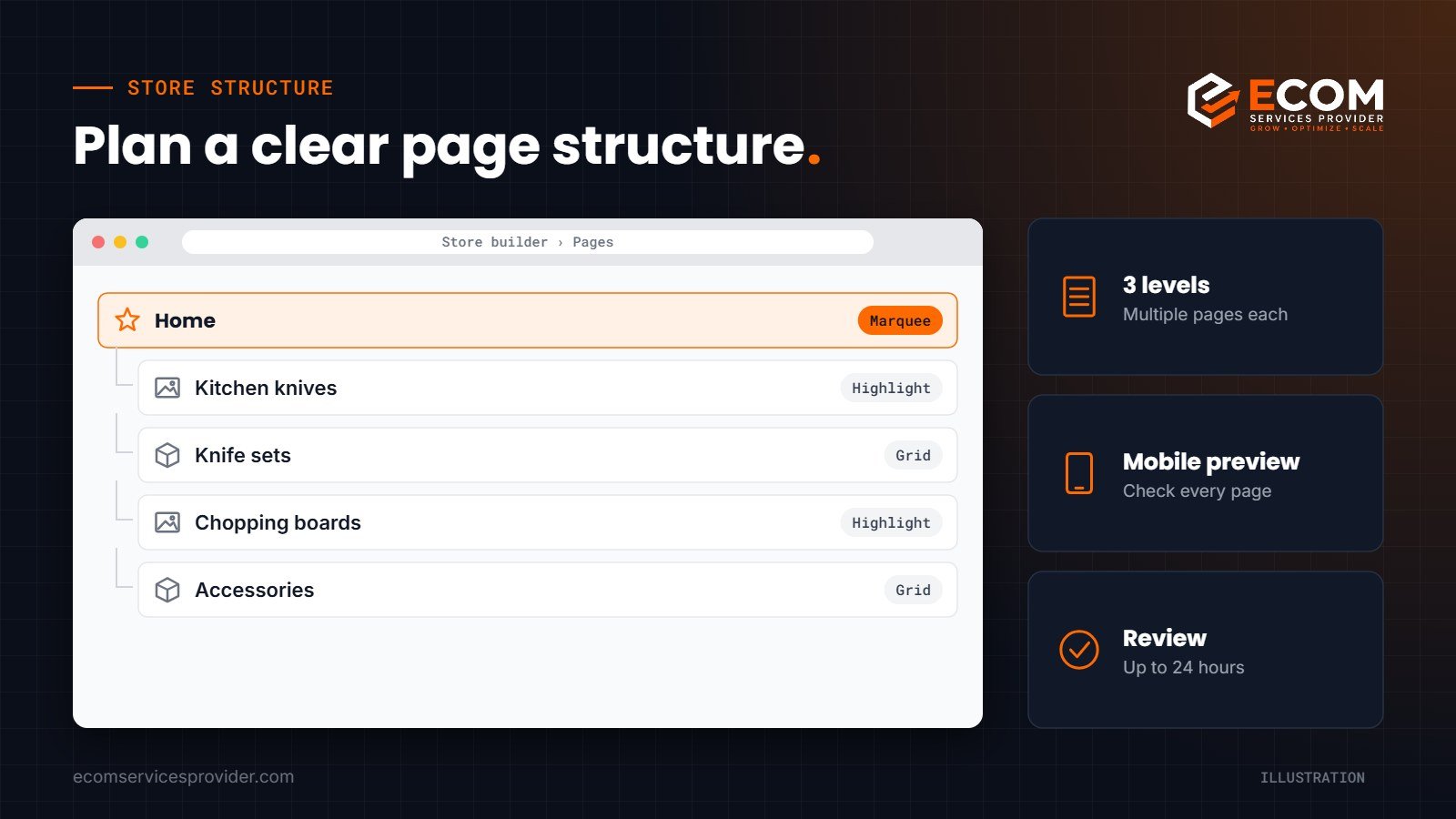
Structure matters as much as design. Amazon’s Store builder supports up to three levels of pages, with multiple pages at each level. For example:
- Level 1: Homepage
- Level 2: Main categories, such as knives, chopping boards and accessories
- Level 3: Subcategories, such as knife sets or single knives
Keep navigation simple. Shoppers should reach any product within two or three clicks, and page names should use words customers search for, not internal product codes.
Amazon Brand Store Tiles to Know
Each page is made of sections, and each section contains tiles. Amazon’s Stores specifications list the tiles available, including:
- Image, text and image-with-text tiles
- Shoppable images, which tag products directly on a lifestyle photo
- Video and background video tiles
- Gallery tiles for multiple images
- Product and Product Grid tiles
- Best Sellers, Recommended Products and Featured Deals tiles
There are limits per page. For example, a page can include up to 20 sections, and some tiles, such as the Product Grid and Featured Deals tiles, can be used only once per page. Plan your layout with these limits in mind.
Shoppable images are especially useful on Product Highlight pages, because shoppers can see products in use and click straight through to buy them from the same picture.
How to Build a Store Page
Once you have chosen a template, follow these steps:
- Choose the template and name the page clearly
- Replace the placeholder content with your own images, text and products
- Add, remove or reorder sections to suit the page’s purpose
- Preview the page on both desktop and mobile
- Submit the Store for review, which Amazon says can take up to 24 hours
Mobile matters most. Many shoppers view Stores on their phones, so check that text is readable, images are not cropped awkwardly and tiles stack in a sensible order.
Common Store Template Mistakes
These problems make Stores harder to use or slow down approval:
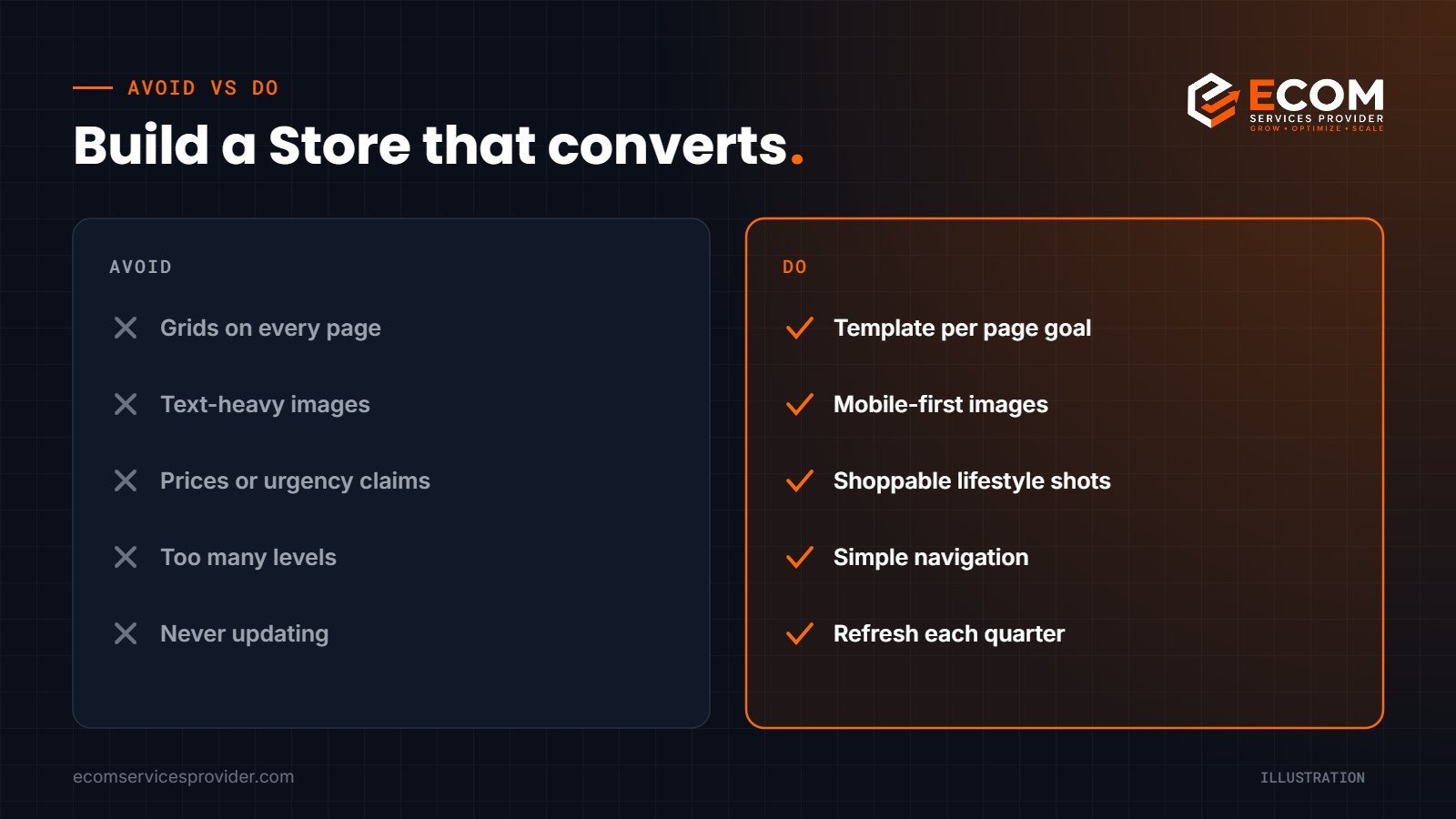
- Using Product Grid everywhere, so the Store feels like a search results page
- Adding text-heavy images that are unreadable on mobile
- Including prices, discount claims or urgency phrases that breach Stores policy
- Creating too many levels and pages for a small range
- Never updating the Store after launch
Amazon recommends refreshing your Store at least once a quarter. Seasonal updates, new launches and fresh imagery give returning shoppers a reason to explore.
How We Do It at ECOM Services Provider
Our Amazon storefront design process starts with the brand’s range and customers, not the template. We map the products into a clear page structure, decide what each page needs to achieve, and then choose the template that fits each page: usually Marquee for the homepage and a mix of Product Highlight and Product Grid below it.
Our designers create custom images, banners and shoppable lifestyle visuals sized for both desktop and mobile, matching the brand’s A+ Content and listing images so the whole brand feels consistent. We preview every page on mobile, check content against Amazon’s Stores policies before submission, and plan regular updates using the data in Store Insights.
Frequently Asked Questions
What templates are available for Amazon Stores?
The Store builder offers Marquee, Product Highlight and Product Grid templates, plus a blank template for building a page from scratch.
Can I change the template after building a page?
Templates are a starting point. You can add, remove and rearrange sections and tiles at any time, then resubmit the Store for review.
How many pages can an Amazon Brand Store have?
A Store can have up to three levels of pages, with multiple pages at each level, so you can organise large ranges into clear categories.
Do I need Brand Registry to create an Amazon Store?
Sellers need to be enrolled in Amazon Brand Registry. Vendors and agencies acting for a brand can also create Stores.
Build a Store Shoppers Enjoy Browsing
Choosing the right Amazon store templates for each page gives your brand a clear structure, faster browsing and a better route from discovery to purchase. ECOM Services Provider has 8+ years of experience and 768+ completed projects, designing Brand Stores, A+ Content and listing images for brands worldwide. Book a free consultation to plan your Store.